 Configuring Stonefield Query
The Options item in the Tools menu and Tools tab of the ribbon allows you to configure Stonefield Query so it works properly for you.
Some of the items discussed are personal; that is, changing them affects only you, even if you use Stonefield Query on a network. These settings are saved in the Windows Registry. Those that affect all users are specifically mentioned; they are saved in Data.ini in the Data subdirectory of the program folder.
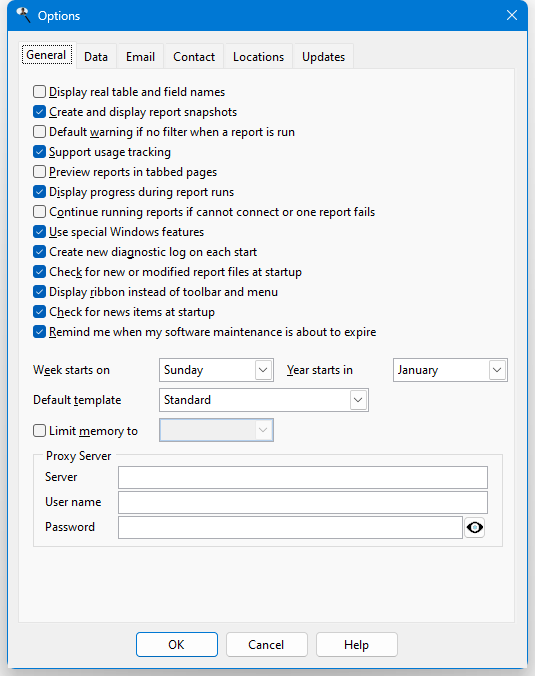
The options in the General page are:
Display real table and field names: if you are familiar with the name of your application's tables and fields, you might find it easier to locate the tables and fields you want by their real names. If you turn this option on, Stonefield Query displays the real name followed by the descriptive name in parentheses.
Create and display report snapshots: the Sample page of the Reports Explorer shows a snapshot of what the report looked like the last time it was run. Storing snapshots for each report makes your reports file much larger, which may be an issue if you're short on disk space. In that case, turn this option off to prevent snapshots from being created.
This setting is set the same for all users.
Default warning if no filter when a report is run: if you run a report without creating a filter for it and there are a lot of records in the tables in that report, it can take a long time to run the report. To prevent this, Stonefield Query warns you that there is no filter for the report and gives you the option of running the report anyway or canceling. If you don't want to see this warning message when you run a report without a filter, turn the Warning if no filter when report is run setting for the report off. If you want all new reports to default to it turned off, turn off Default warning if no filter when a report is run.
Support usage tracking: turn this setting off if you want to turn off usage tracking. If you change this setting, Stonefield Query must restart to use the new value. You are informed of this when you choose OK to close the dialog and after you confirm this message, Stonefield Query restarts automatically.
This setting is set the same for all users.
Preview reports in tabbed pages: if you turn this option on and then preview several reports (or even the same report more than once), Stonefield Query puts each report into a separate tab in a single Preview window. With this option off, each report appears in its own Preview window.
Display progress during report runs: turn this option if you want to see a window displaying the progress of a report run. This window includes a Cancel button you can click to cancel the report if you wish. Turning this option on dims the Reports Explorer and any open report wizards and slows down report runs slightly but in our opinion is worth it.
Continue running reports if cannot connect or one report fails: if this option is turned off (the default), when you run a batch report and one of the reports fails for some reason, the batch report stops without running the rest of the reports. If this setting is turned on, the batch run continues with the next report.
This setting is set the same for all users.
Use special Windows features: by default, Stonefield Query provides some special features in Windows 7 and later. On some systems, however, this causes a crash when exiting. Turn this setting off to fix this problem. If you change this setting, Stonefield Query must restart to use the new value. You are informed of this when you choose OK to close the dialog and after you confirm this message, Stonefield Query restarts automatically.
This setting is set the same for all users.
Create new diagnostic log on each start: Stonefield Query keeps a diagnostic log (Diagnostic.txt in the Data subdirectory of the program folder) to help track down the cause of any problems that may occur. This file is normally recreated every time you start the program, but you can turn this setting off to specify that the logs should be kept instead. This is useful for checking diagnostics over multiple runs, such as for scheduled reports. Of course, you normally don't want to do that to prevent a lot of log files from being created, so you should turn this off once you're done with it. When this setting is turned on, Stonefield Query creates separate diagnostic files with a timestamp as part of the filename. If Stonefield Query is run with a command line parameters file, such as when called from the Windows Task Scheduler for a scheduled report, the parameter filename is also added to the diagnostic filename.
Advanced diagnostics: turn this setting on to create additional diagnostic files helpful for tracking down certain types of issues.
Check for new or modified report files at startup: Stonefield Query usually checks at startup for any new SFX files in its reports folder and automatically imports any that aren't already in its report catalog. This can take a little while if there are a lot of reports. To speed up startup, turn this setting off.
This setting isn't available if the Overwrite reports catalog with server version setting is turned on in the Locations page.
Check for news items at startup: turn this option on to automatically check once a day at program startup to see if there is any news about Stonefield Query, and if so, display the latest news item. Even with this option turned off, you can still check for news with the News from Stonefield Software Inc. function in the Help menu or Help tab of the ribbon.
Remind me when my software maintenance is about to expire: if this option is turned on, Stonefield Query reminds you before your software maintenance is about to expire. This is helpful, because your software maintenance must be current to receive updates and technical support.
Display ribbon instead of toolbar and menu: turn this setting on to display a ribbon similar to that in Microsoft Office applications at the top of the Reports Explorer window rather than a menu and toolbar. If you change this setting, Stonefield Query must restart to use the new value. You are informed of this when you choose OK to close the dialog and after you confirm this message, Stonefield Query restarts automatically.
Week starts on: this determines what date is displayed when dates are formatted to display as weeks. For example, December 3, 2008, which is a Wednesday, displays as follows:
Week Starts On Display Sunday Week of 11/30/2008 (the preceding Sunday) Monday Week of 12/01/2008 (the preceding Monday) Tuesday Week of 12/02/2008 (the preceding Tuesday) Wednesday Week of 12/03/2008 (today, since it's the first day of the week) Thursday Week of 11/27/2008 (the preceding Thursday) Friday Week of 11/28/2008 (the preceding Friday) Saturday Week of 11/29/2008 (the preceding Saturday) This setting is set the same for all users.
Year starts in: this determines the first month of your fiscal year. This is important if you format dates as quarters. The default is January, meaning that December 3, 2008 is in quarter 4. If you set Year starts in to November, December 3, 2008 is in quarter 1.
This setting is set the same for all users.
Default template: this setting determines the default template used for new reports.
Limit memory to: by default, Stonefield Query isn't limited in how much memory it can use. That doesn't mean it automatically takes up all of your system memory, just that it can use as much as is available when running a very long report. Database querying is memory-intensive, so this provides better performance. However, in some cases, especially in Windows Terminal Server environments where multiple users run Stonefield Query on the same server at the same time, this can end up limiting the amount of memory available for other applications or other users. In that case, turn this setting on and select the maximum amount of memory you want Stonefield Query to use.
This setting is set the same for all users.
Proxy Server: if you use a proxy server to access the Internet, tell Stonefield Query about that server by filling in the Server, User name, and Password settings. The latter two aren't required if the user name and password aren't specified for the proxy server. Click the "show password" button toggle between displaying the password in plain text or as "*****" (the password is always stored encrypted regardless of the setting of this button).
This setting is set the same for all users.
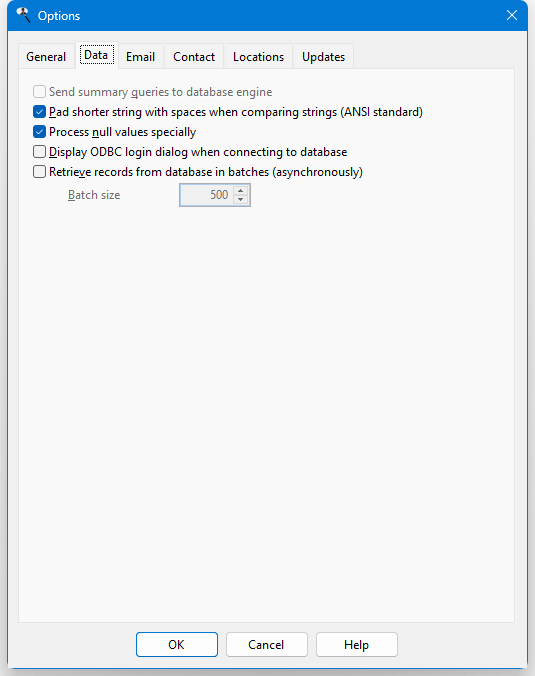
The options in the Data page are:
Send summary queries to database engine: some types of reports, such as quick reports with the Summary report option turned on, cross-tab reports, and charts, summarize the raw data in your database to produce the final results. Some database engines have no problem doing the summarization, in which case you should turn this option on. However, other database engines do not perform summarization very quickly, and in fact it can be significantly faster to have Stonefield Query retrieve the raw data and do the summarization itself. If you find those types of reports running slowly, try changing the setting of this option, either turning it off or on, to see if that improves the performance.
If you turn this on, your reports cannot have fields that don't appear in the report in the Selected Fields list in Step 2 of the report wizard. For example, if you have a quick report with Country, City, and Amount, the report groups on Country and sums on Amount, and has Summary report turned on, the City field doesn't appear in the report because it's neither grouped nor summed. In that case, if you select this report when Send summary queries to database engine is turned on, you will get a warning message that City has to be removed from the report.
This setting is set the same for all users.
Pad shorter string with spaces when comparing strings (ANSI standard): if you find that filtering a report on a formula doesn't work correctly, it may be because when comparing two strings, Stonefield Query normally pads the shorter string with spaces to make it equal to the length of the longer string and the two strings are then compared character for character for their entire lengths (this follows the ANSI specification for SQL string comparison). While that usually works, under some conditions, it's better for the shorter string to not be padded and the two strings compared until the end of the shorter string is reached. In that case, turn off this setting.
This setting is set the same for all users.
Process null values specially: if none of your data fields contain null values, you can make processing slightly faster by turning this option off.
This setting is set the same for all users.
Display ODBC login dialog when connecting to database: some databases require that the ODBC login dialog appears. You can force that to happen by turning this setting on.
This option may not appear, depending on the type of database you are connected to.
This setting is set the same for all users.
Retrieve records from database in batches (asynchronously): if this option is turned off, Stonefield Query retrieves the entire set of records it needs for a report from the database at one time. While this is great for performance, it also means that you cannot stop a report run while the records are being retrieved. If there are a lot of records, you may have to wait a while before pressing Esc or clicking the Cancel button stop the report run. Turning this option on tells Stonefield Query to retrieve records in batches and check for Esc or Cancel between each batch. This gives you the ability to stop the report sooner. If you turn this on, you can set the batch size, which is the number of records to retrieve at one time. Larger values give better performance but also mean you have to wait longer between pressing Esc or clicking the Cancel button and Stonefield Query stopping the report run.
This option may not appear, depending on the type of database you are connected to.
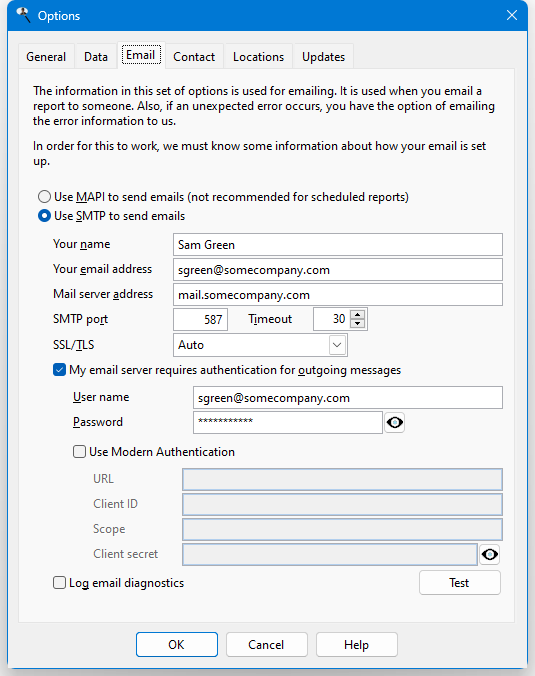
The options in the Email page are used when you want to email a report to someone or if an unexpected error occurs in Stonefield Query, in which case you have an option of emailing an error report to us so we can resolve the problem. The options are:
Use MAPI to send emails: choose this option if you use a MAPI-based email client such as Microsoft Outlook. If you don't use Outlook and you're not sure if your email client uses MAPI or not, ask your system administrator.
Stonefield Query requires the 32-bit version of Outlook and cannot send emails if you installed the 64-bit version. If that's the case, use SMTP instead. Also, MAPI isn't recommended if you want to email a scheduled report as it often fails. The other options on this page don't apply if you choose MAPI.
Use SMTP to send emails: choose this option if you use an SMTP-based email system or can configure your email system to use SMTP.
This is the preferred option for emailing because it's more reliable.
If you use Microsoft Exchange, it must be configured by your administrator to work with SMTP.
Your name: your email descriptive name.
Your email address: the email address to use as the "reply to" address.
Mail server address: the address for your SMTP mail server. If this isn't filled in by default, check your email client to see how it's set up.
SMTP port: the port for your SMTP mail server. This defaults to 25, but can be changed if necessary. As with Mail server address, check your email program's account settings and use the same port number here. For Gmail, use 465.
Timeout: specifies how long (in seconds) to wait for a response from the email server.
SSL/TLS: this determines whether SSL/TLS is used to communicate with your email server. The best (and default) choice is Auto, meaning the email module will determine whether SSL/TLS is required by checking with your email server. The other choices are None (no encryption is used), Use SSL/TLS on connect (always use encryption upon connecting to the server), and Use TLS if supported (use TLS if the server supports it).
My email server requires authentication for outgoing messages: turn this option on if applicable. To determine if you should turn this on or not, check your email client setup.
User name: the user name to use if the My email server requires authentication for outgoing messages option is turned on.
Password: the password to use if the My email server requires authentication for outgoing messages option is turned on. Click the "show password" button toggle between displaying the password in plain text or as "*****" (the password is always stored encrypted regardless of the setting of this button).
Use Modern Authentication: Basic Authentication is simply providing a user name and password to connect to a mail server. More and more mail services, including Office 365 and Gmail, are moving away from Basic Authentication and implementing Modern Authentication, also known as OAuth2. Modern Authentication uses a two-step process to connect to a mail server: first obtaining a security token from the mail server, then using that token to connect to the mail server to send the email. This happens behind the scenes so you don't actually see this happening.
In order for Stonefield Query to obtain a token from your mail server, it needs to know four things: the URL to obtain the token from, your client ID (which is not the same as User name), the scope, and a "client secret" (basically a password for obtaining the token). You can get those four settings from your mail server. How you do that depends on the mail server; see Setting up Modern Authentication with Office 365 for instructions on how to do that with Office 365 (Gmail is not supported at this time). Once you have those settings, turn on Use Modern Authentication and fill them in.
Log email diagnostics: turn this on to do diagnostic logging when emails are sent, which is helpful if emails cannot be sent for some reason. If emails are working reliably, turn this setting off because the log file can get very large. This setting isn't available if Use latest protocols is turned off.
Test: once the email options are set, click this button to send a test message to yourself. This allows you to ensure the email settings are correct.
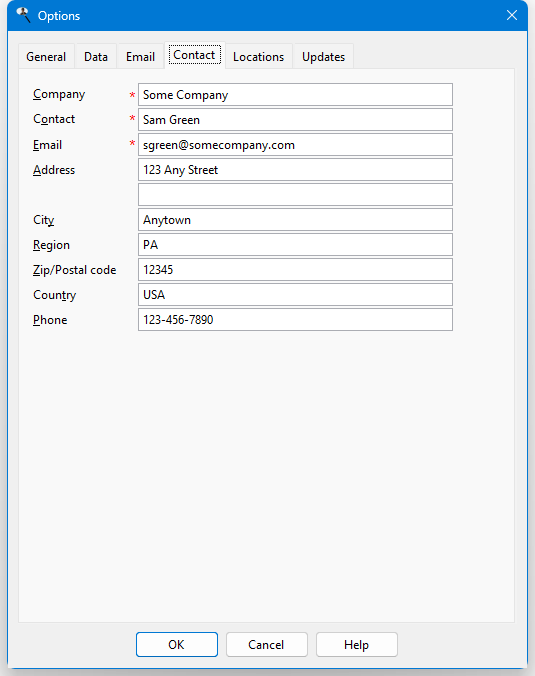
The options in the Contact page are used as contact information when you email or fax an error report to us. The options are self-explanatory. The ones with a red * are required and you cannot click OK until they are filled in.
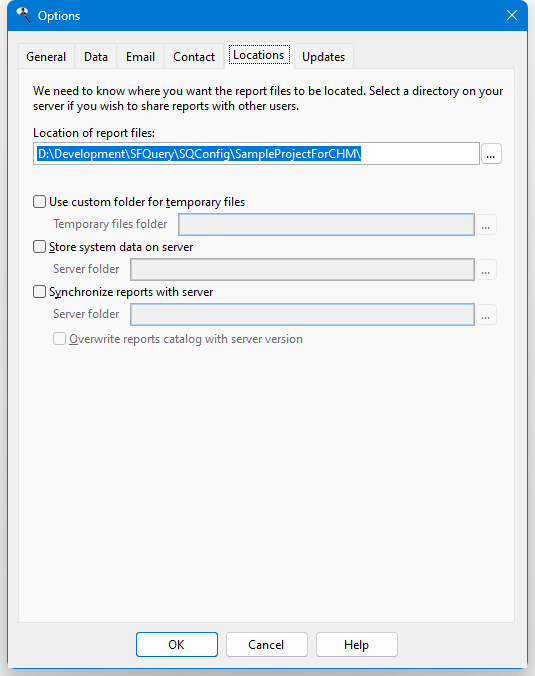
The Locations page allows you to change the locations where Stonefield Query looks for or stores certain types of files.
This page is only available to administrative users.
Location of report files: the folder where Stonefield Query stores reports. This is the folder containing Reports.dbf, which contains the report catalog. You can specify any directory for the Stonefield Query files, but we recommend a directory on a server; that way, you can share reports with other users. If you change this location, Stonefield Query must restart to use the new folder. You are informed of this when you choose OK to close the dialog and after you confirm this message, Stonefield Query restarts automatically and uses the new folder.
This setting is set the same for all users.
Use custom folder for temporary files: by default, Stonefield Query writes files it needs temporarily to your temporary files folder (the one specified in the TEMP or TMP environment variables). In some Terminal Server or Citrix environments, that folder doesn't exist when a report is run from a scheduled task. In that case, turn this setting on and specify a folder where temporary files can be written to. Note that all users must have full permissions to this folder.
This setting is set the same for all users.
Store system data on server: the folder for Stonefield Query "system data" files (licenses, users, etc.). This is normally the Data subdirectory of the program folder but you could install the application on a local workstation and specify that system data files are stored on the server. In that case, the only files needed in the Data subdirectory of the program folder on the workstation are SQResource.dbf, SQResource.fpt, and SQResource.cdx. If you change this location, Stonefield Query must restart to use the new folder.
This setting is set the same for all users.
Synchronize reports with server: turning this setting on allows you to specify a folder on the server for synchronizing reports.
This setting is set the same for all users.
Overwrite reports catalog with server version: if you turn this setting on, workstations and the server contain the exact same set of reports; at startup, the workstation's reports are overwritten with those on the server. With this setting turned off, it's possible for the workstation to have more reports than the server since syncing is from the server to the workstation and not vice versa.
This setting is set the same for all users.
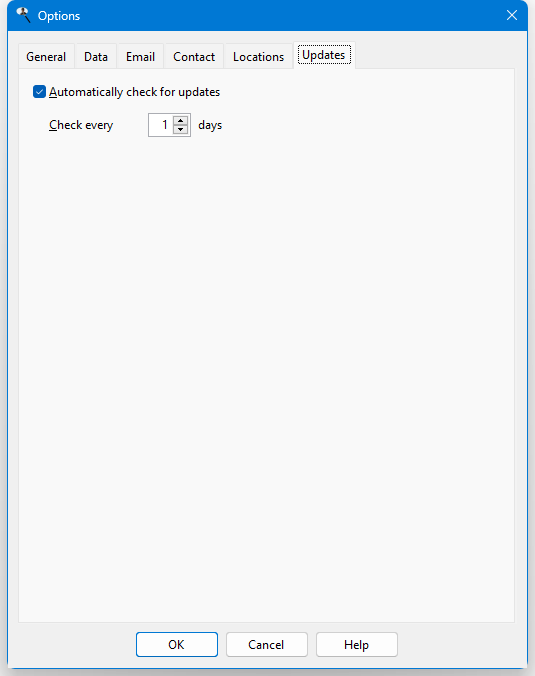
The options in the Updates page configure how Stonefield Query checks for updated versions.
This page is only available to administrative users.
Turn off the Automatically check for updates option if you do not want to automatically check for updates. If you turn this option on, specify how often, in days, it should check. With this option turned on, Stonefield Query checks our server for the availability of a newer version when it starts. If a newer version is found, a dialog showing some of the new features displays. If your software maintenance is current, you have the option of downloading and installing this version. If your software maintenance has lapsed, you do not have this ability.
Other Configuration Settings
Here are some other configuration settings you can change:
Normally, Stonefield Query checks once a day to ensure that activation information is correct. However, if you don't have an Internet connection, this causes startup to take 30 seconds or so because it has to wait until the attempt to connect to our Web server times out. To speed up startup in this case, create a RegDays entry in the Options section of Data.ini in the Data subdirectory of the program folder (if you upgraded from an earlier version, this file may be in the program folder instead) that tells the program to check less frequently. For example, this entry specifies checking every 15 days:
RegDays=15One consequence of Data.ini in a server environment is that all users access the same reports location. If you want users to access different locations, add the following line to Data.ini:
UseRegistry=YesThis tells Stonefield Query to store the location of the reports files in the Windows Registry, which is what previous versions used to do. When each workstation runs Stonefield Query for the first time, they'll be prompted for the location of their reports.
If you run Stonefield Query from a server and have problems viewing help, you can copy the help file to a local folder and specify in Data.ini where the help file is located:
Help=Locationwhere Location is the location and name of the help file.
By default, the Login dialog displays the name of the last user who logged in. You can prevent that by adding the following line to Data.ini:
AutoLoginName=No
© Stonefield Software Inc., 2025 • Updated: 05/27/25
Comment or report problem with topic