 Running Stonefield Query
Running Stonefield Query is easy: just double-click the Stonefield Query icon on your Windows desktop. Alternatively, click the Start button in your Windows Taskbar and choose Stonefield Query from the program list.
If this is the first time you've run Stonefield Query, you're asked for some setup information (including where you want Stonefield Query to store its data files).
If the Automatically check for updates option in the Options dialog is turned on, Stonefield Query checks our server to see if a newer version is available, and if so, displays a dialog with information about the new version. See the Updating Stonefield Query to the Latest Version topic for more information.
What happens next depends on whether you have activated Stonefield Query or not. If not, a Welcome dialog appears informing you how many days you have left to use the program without activating it.
You're then asked to log in. Enter the user name and password you were assigned (initially, these are both "ADMIN"). Click the "show password" button toggle between displaying the password in plain text or as "*****". You can also choose the database you wish to run reports for; the list shows which ones you can access once you enter your user name. You can change to a different database any time by choosing the Open Database function from the File menu. The login dialog has a link to the Setup dialog. This is useful if you need to change something about the Stonefield Query setup before logging in. This link is only available if you log in as an administrator.
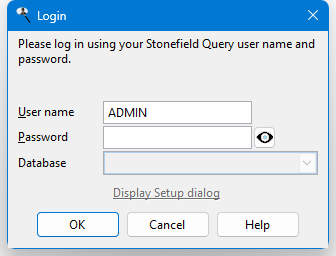
By default, the Login dialog displays the name of the last user who logged in. You can prevent that by adding AutoLoginName=N to Data.ini in the Data subdirectory of the program folder.
The Reports Explorer appears next. You can select an existing report and print or preview it, or create a new report if you are using a license other than Basic; see the tutorials for examples of how to do both.
If there are any news announcements about Stonefield Query, the News dialog appears showing you the latest announcement. You can also check for news at any time using the News function in the Help menu or in the Help tab of the ribbon. If you don't want Stonefield Query to check for news when it starts up, turn off the Check for news items at startup setting in the Options dialog or check the Don't show this dialog again setting at the bottom of the news dialog.
If Stonefield Query closed due to a problem and you were in the middle of editing a report in a report wizard, the next time you start the program, it prompts if you want to recover and continue editing that report. Choosing No abandons the recovered report so the changes are lost.
To display help information, click the Help button in the toolbar or in the Help tab of the ribbon or press F1.
© Stonefield Software Inc., 2026 • Updated: 11/30/21
Comment or report problem with topic