 General Page
The General page has general chart options.
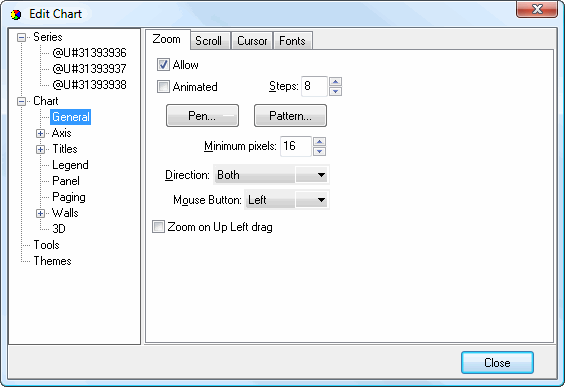
The Zoom subpage has the following options, which affect how zooming into parts of the chart work:
Allow: turn this option on to allow zooming.
Animated: turn this option on to zoom with animation.
Steps: this setting controls the number of steps in the animation.
Pen: click this button to display the Border Editor dialog for the shape drawn when you drag an area to zoom.
Pattern: click this button to display the Pattern Color Editor dialog for the shape drawn when you drag an area to zoom.
Minimum pixels: this is the minimum number of pixels you need to drag the mouse to indicate you want a zoom action to occur.
Direction: this setting specifies whether you drag the mouse horizontally, vertically, or both to trigger a zoom action.
Mouse Button: select which mouse button you want to use for zooming from the drop-down list.
Zoom on Up Left drag: turn this setting on to allow zooming when you drag the mouse up and left. If this setting is turned off, dragging up and left restores the zoom scale to the original size.
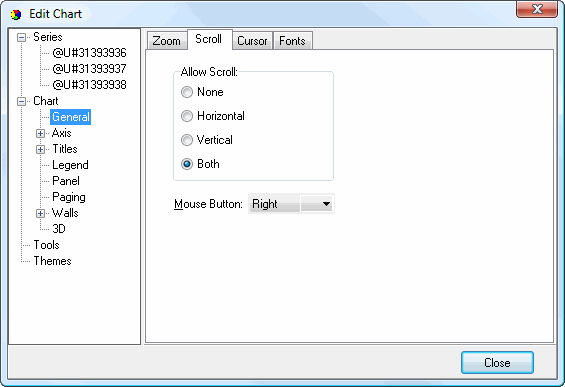
The Scroll subpage has the following options, which affect how scrolling the chart works:
Allow Scroll: determines if and how scrolling occurs. The choices are None, Horizontal, Vertical, and Both.
Mouse Button: select which mouse button you want to use for scrolling from the drop-down list.
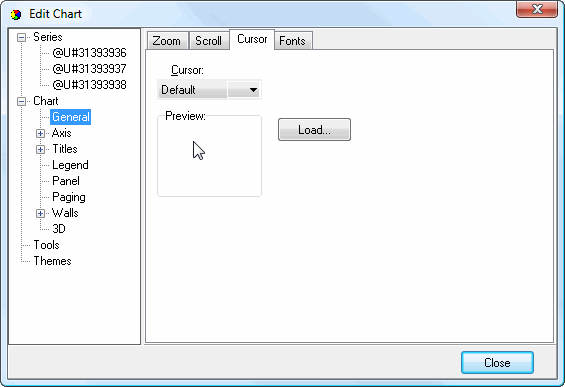
The Cursor subpage has the following options, which affect the shape of the mouse pointer when it's over the chart:
Cursor: this setting specifies the shape of the mouse pointer.
Load: click this button to load a cursor from a CUR file.
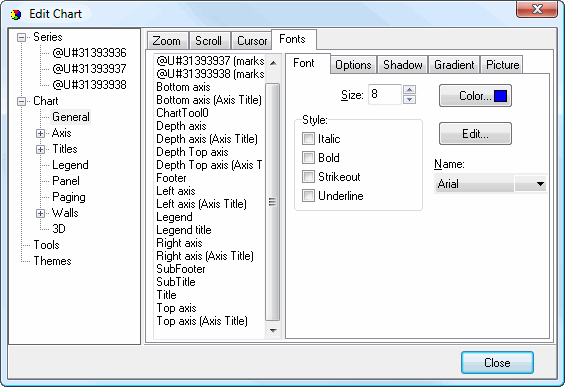
The subpages of the Fonts subpage allow you to quickly change the font settings for various objects, such as the Legend, Legend Title, and Title. The Font subpage of the Fonts subpage has the following options:
Size: select the size of the text.
Color: click this button to control the color of the text.
Style: select the desired style: italic, bold, strikeout, or underline.
Edit: click this button to display the Font dialog, which allows you to change several of the settings on this page at once.
Name: select the name of the font.
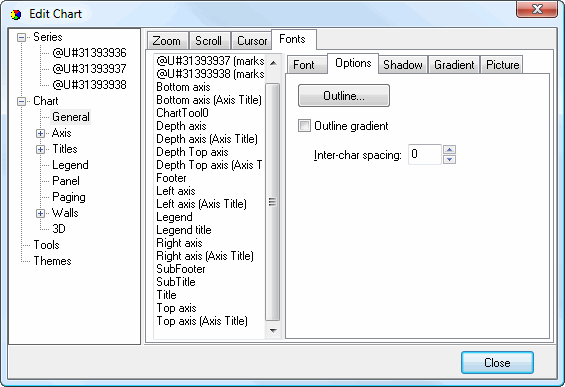
The Options subpage of the Fonts subpage has the following settings:
Outline: click this button to display the Border Editor dialog for the outline of the text.
Outline gradient: click this button to display the Gradient Editor dialog for the text outline.
Inter-char spacing: increase the value of this setting to space the characters further apart.
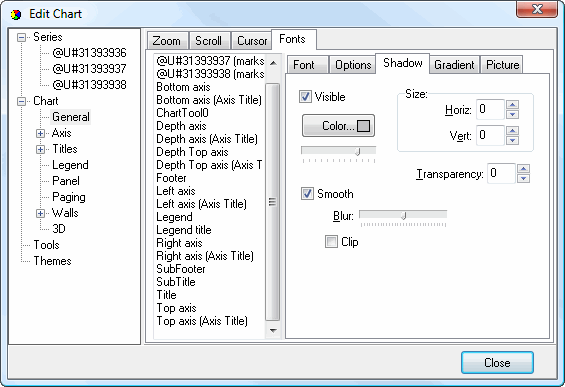
The Shadow subpage of the Fonts subpage has the same options as the Shadow Editor dialog.
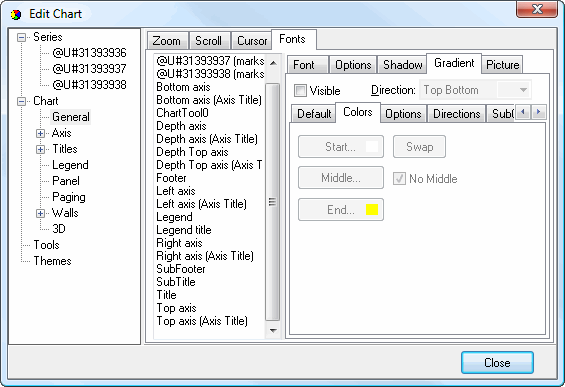
The Gradient subpage of the Fonts subpage has the same options as the Gradient Editor dialog.
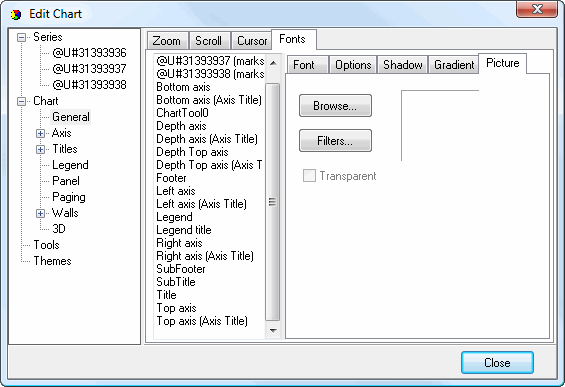
The Picture subpage of the Fonts subpage has the following options:
Browse: click this button to display a dialog from which you can select the image file to use for the picture.
Filters: brings up the Filters Editor so you can apply various graphic effects to the image.
Transparent: turn this setting on to display a transparent picture.
© Stonefield Software Inc., 2023 • Updated: 06/07/16
Comment or report problem with topic