 Lesson 1: Creating a Report
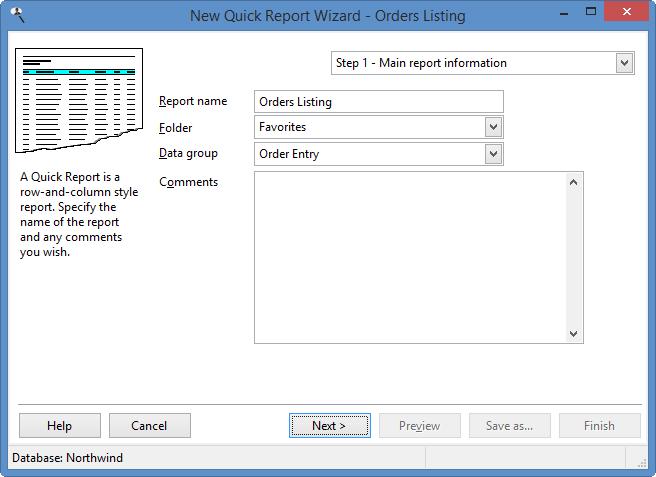
Let's create a report showing order information. First, if the Reports Explorer displays a ribbon, click the New button in the Home tab and choose Quick Report from the dropdown list. If a ribbon isn't displayed, click the New button in the toolbar and choose Quick Report from the Report Types dialog, then click OK. The New Quick Report Wizard appears. In Step 1, enter "Orders Listing" for the report name. Enter any comments you wish about the report.
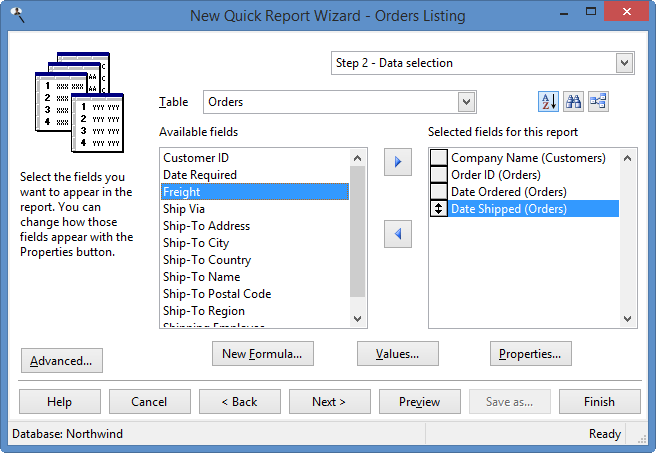
Click the Next button to go to Step 2. For Table, select "Customers." Then, find "Company Name" in the Available Fields list, click it, and click the Add button (which looks like a right arrow) to add it to the Selected Fields list.
Select "Orders" in the Table list. Find each of the following fields in the Available Fields list, click it, and click the Add button: "Order ID," "Order Date," and "Shipped Date."
Let's see what the report looks like: click the Preview button.
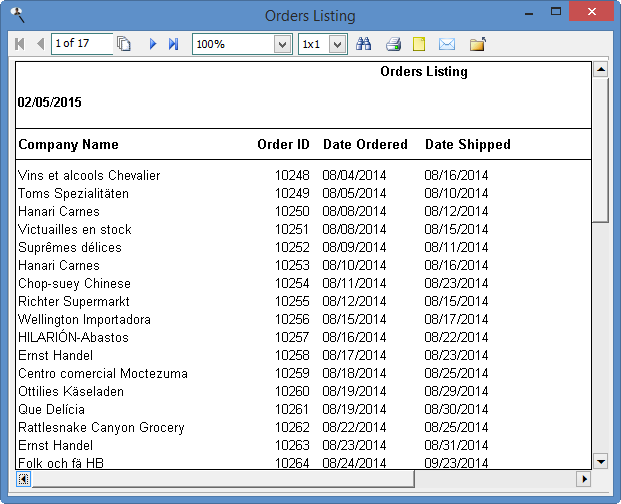
It's not a bad start, but let's format it so it looks like we expect. Close the preview window, and then select the "Company Name" field in the selected fields list, click the Properties button below the list, select the Grouping page, and turn on the Group on this field setting. Click OK to close the Properties dialog.
Let's preview it again.
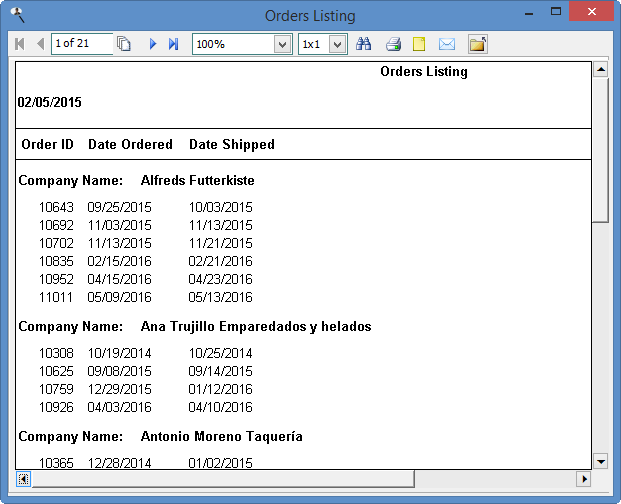
That's more like it. The listing is grouped by company name and is laid out as we expect.
To save this report for future use, click the Finish button. It appears in the Reports Explorer list.
© Stonefield Software Inc., 2023 • Updated: 01/20/21
Comment or report problem with topic