 Title Page
The Titles page specifies how titles appear in the chart. You can either select a specific title from the drop-down list at the top of the Title page or select the specific title to format in the list at the left. The options are the same for each type of title.
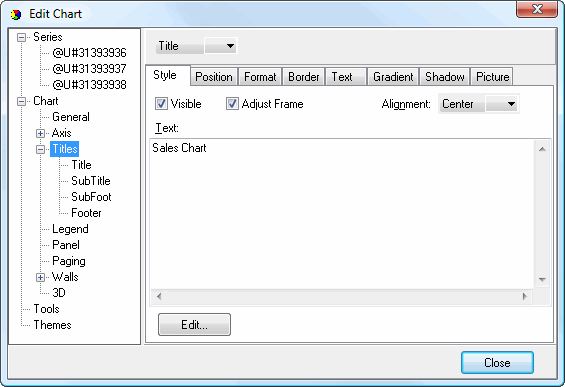
The Style subpage has the following options:
Visible: turn this setting on to display the selected title.
Adjust Frame: turn this setting on to have the frame of the title adjust to match the text. With this setting turned off, the frame is a fixed size the width of the chart.
Alignment: this option specifies the alignment for the title text.
Text: the text for the title.
Edit: click this button to display a Text Editor dialog.
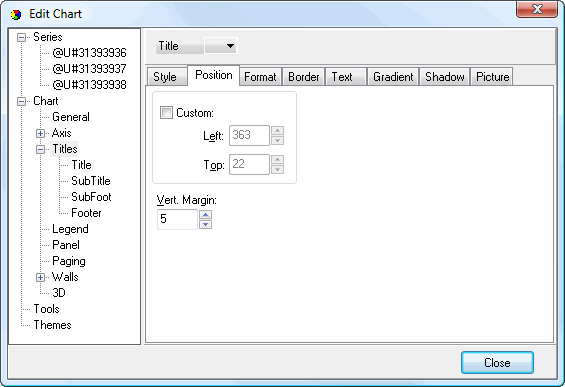
The Position subpage has the following options:
Custom: turn this setting on to specify a custom position for the title; otherwise, the title is automatically positioned.
Left: this setting, which is only available when the Custom setting is turned on, specifies the left position for the title.
Top: this setting, which is only available when the Custom setting is turned on, specifies the top position for the title.
Vert. Margin: the vertical margin for the title.
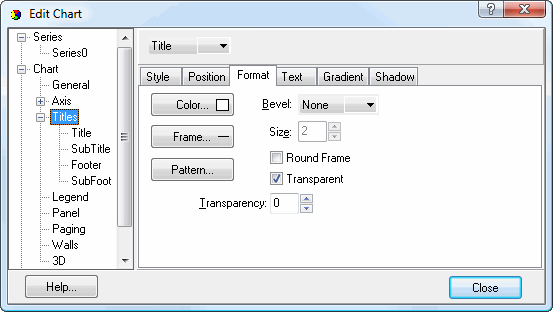
The Format subpage has the options which specify the shape in which the title appears. It has the following options:
Color: click this button to display a dialog in which you can select the inner color for the shape.
Pattern: click this button to display the Pattern Color Editor dialog.
Transparent: turn this setting on to display a transparent shape. Note that all other settings on this page are ignored if this is turned on.
Transparency: use this setting to control the amount of transparency (in percent) of the shape.
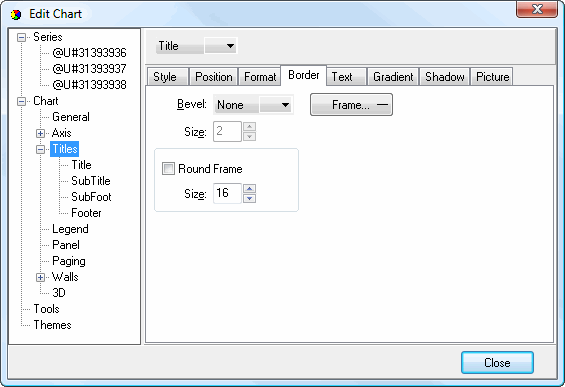
The Border subpage has the options which specify the border of the shape in which the title appears. It has the following options:
Bevel: this setting specifies whether the shape appears with a lowered, raised, or no bevel.
Size: this setting, which is only available if Bevel is set to something other than None, specifies the size of the bevel.
Frame: click this button to display the Border Editor dialog for the shape.
Round Frame: turn this setting on to display the shape with a round frame.
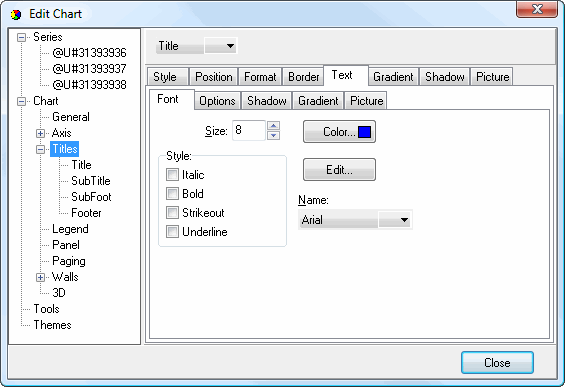
The Font subpage of the Text subpage has the following options:
Size: select the size of the text.
Color: click this button to control the color of the text.
Style: select the desired style: italic, bold, strikeout, or underline.
Edit: click this button to display the Font dialog, which allows you to change several of the settings on this page at once.
Name: select the name of the font.
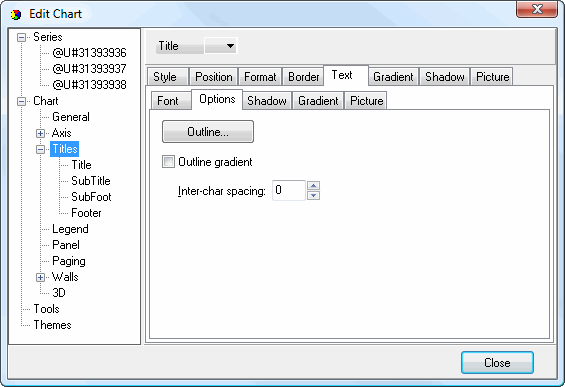
The Options subpage of the Text subpage has the following settings:
Outline: click this button to display the Border Editor dialog for the outline of the text.
Outline gradient: click this button to display the Gradient Editor dialog for the text outline.
Inter-char spacing: increase the value of this setting to space the characters further apart.
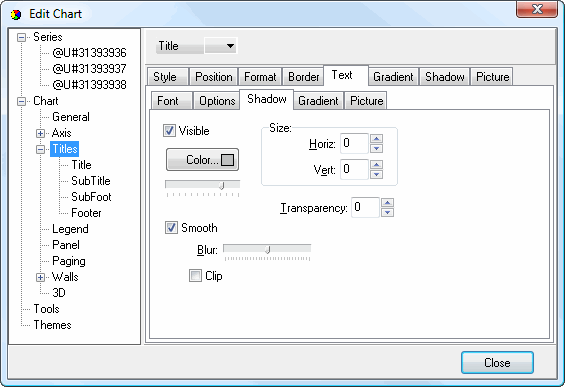
The Shadow subpage of the Text subpage has the same options as the Shadow Editor dialog.
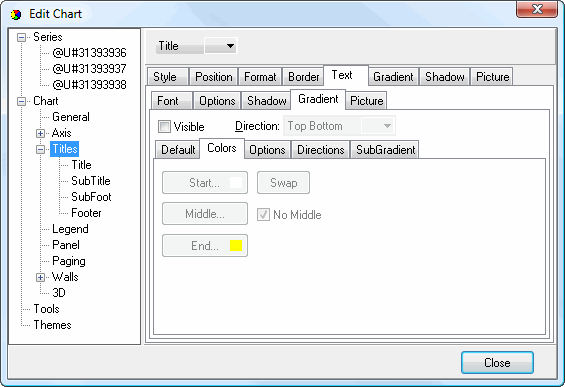
The Gradient subpage of the Text subpage has the same options as the Gradient Editor dialog.
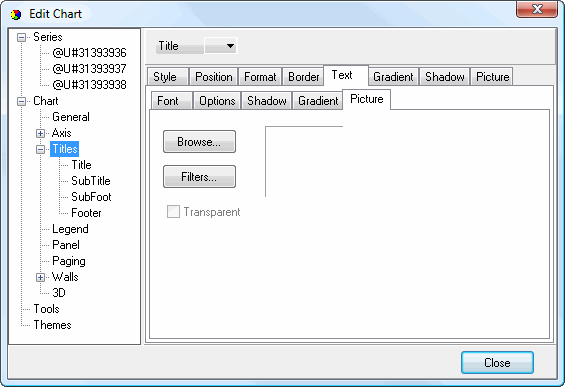
The Picture subpage of the Text subpage has the following options:
Browse: click this button to display a dialog from which you can select the image file to use for the picture.
Filters: brings up the Filters Editor so you can apply various graphic effects to the image.
Transparent: turn this setting on to display a transparent picture.
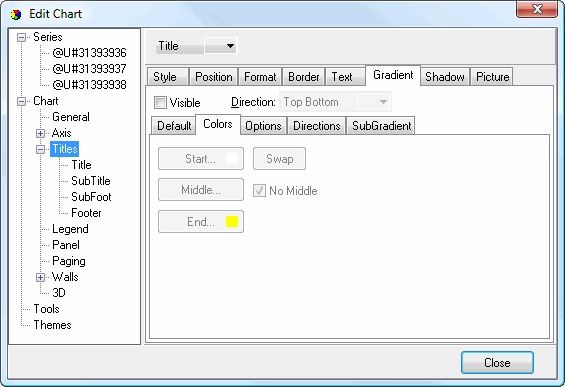
The Gradient subpage controls the gradient settings for the shape in which the title appears. It has the same settings as the Gradient Editor dialog.
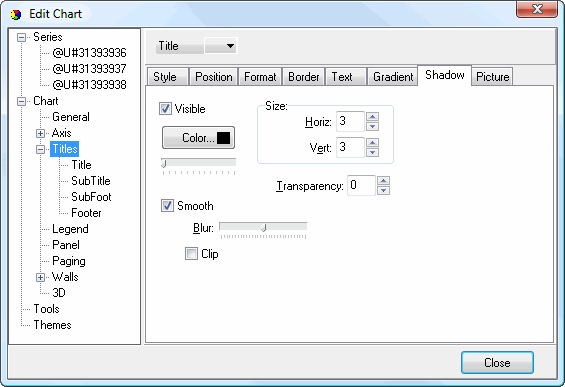
The Shadow subpage controls the shadow for the shape in which the title appears. It has the same settings as the Shadow Editor dialog.
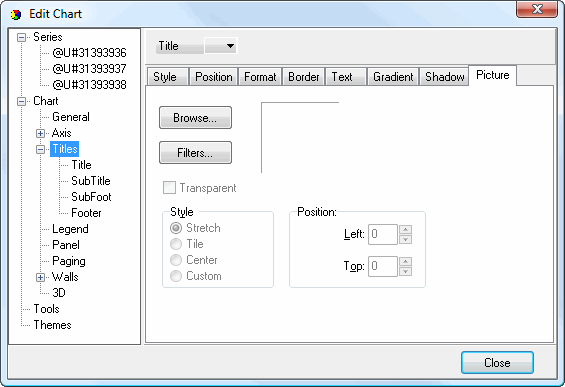
The Picture subpage controls the picture for the title. It has the following options:
Browse: click this button to display a dialog from which you can select the image file to use for the picture.
Filters: brings up the Filters Editor so you can apply various graphic effects to the image.
Transparent: turn this setting on to display a transparent picture.
Style: this controls how the picture is formatted if the image is a different size than the symbol. The choices are:
Stretch: the image is stretched to fit the symbol.
Tile: the image is tiled to fit the symbol.
Center: the image is centered on the symbol.
Custom: turn this option on to specify where the image should be positioned using the Left and Top controls.
© Stonefield Software Inc., 2023 • Updated: 06/07/16
Comment or report problem with topic