 Field Properties
The fields that make up a table are shown under the "Fields" node in the TreeView for the table. Real fields (those that exist in the database) are shown in the TreeView as  . Calculated fields have
  as the image. Fields can be displayed in alphabetical order or in their physical order in the table; the Sort Fields Alphabetically function in the Edit menu, the shortcut menu, and the toolbar toggles between these two sorts.
When you select a field in Stonefield Query Studio, the properties pane displays the properties for that field. There are four pages of properties. Click the buttons at the top of the properties pane to select the desired page.
Main Page
The Main page contains the main properties for a field. The following properties appear on this page:
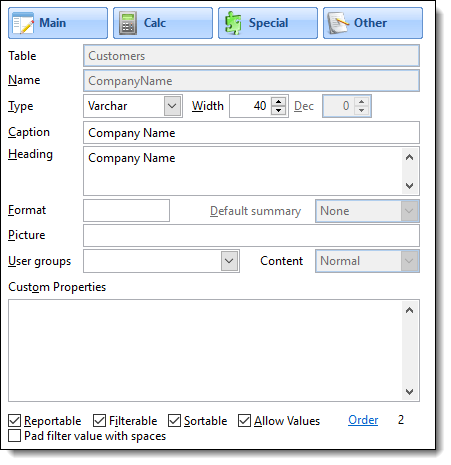
Table: the name of the table this field belongs to. This is shown for information purposes only and cannot be changed.
Name: the name of the field. If the name contains characters other than letters, numbers, and underscores, or if it matches a SQL keyword, such as DESC or ORDER, Stonefield Query Studio automatically adds delimiters around the name (the delimiters you specified when you added the database to the data dictionary). You can also manually add delimiters if necessary. Name delimiters aren't shown when you edit a field. The name can be up to 64 characters long. This control is normally disabled for real fields and enabled only for calculated fields. However, you can edit the Name of a real field by double-clicking the Name label. This should only be used rarely, since the correct way to update a real table is using the Refresh function.
Type: the data type for the field. The choices are:
Symbol Description Blob Used for large binary values, such as images. Character Used for alphanumeric text. Character fields can be up to 254 bytes long. For longer values, use Memo instead. Currency Used for monetary values. The range of values supported is -$922,337,203,685,477.5807 to $922,337,203,685,477.5807. Date Used for date fields. DateTime Similar to Date, but includes the time as well. Double This is a double-precision, floating point number, with a range of +/-4.94065645841247E-324 to +/-8.9884656743115E307. Float This is the same as Numeric and is provided for compatibility with some Visual FoxPro and dBase tables. General This is provided for images stored as an image object rather than image binary data. Integer A 4-byte integer value. The range is -2,147,483,647 to 2,147,483,647. Logical A Boolean field capable of containing True or False (or Yes or No) values. Memo Used for variable length alphanumeric text. Numeric Used to hold numeric values from -.9999999999E+19 to .9999999999E+20. Varbinary Used to hold binary data, such as GUIDs. Varchar Like character fields, but contain variable length text up to the value specified in the Width property. For a SQL Server database, if the field is a VarBinary field containing an image, be sure that the Type property is set to Blob. Also, use the SQL Server ODBC driver rather than the newer ODBC Driver 17 for SQL Server since the latter gives a result set with blank data rather than the correct image bytes.
Width: the size of the field. This property is disabled for those data types that have a fixed width (Blob, Currency, Date, DateTime, Double, General, Integer, Logical, and Memo).
Dec: the number of places after the decimal. This property is only enabled for Double and Numeric fields.
Caption: the name as displayed to the user in Stonefield Query. If the caption is an expression that should be evaluated, precede it with an equals sign ("="). For example, if the caption calls the GetCaption user-defined script, specify "=GetCaption()" (without the quotes) for the caption.
The expression is evaluated every time the field is accessed, so you get better performance by changing the caption in the DataEngine.GetCustomMetaData event script instead.
Heading: the default column heading in a Stonefield Query report. This defaults to the same value as Caption, but can be changed if desired. For example, if a narrow field (such as a 3-character wide field) has a long caption, you might want to use an abbreviation for the column heading. Like Caption, you can specify an expression of you wish. This expression is evaluated when the report is run. Press Enter to add a line break within the heading.
Format: this indicates how the value of the field is formatted. Enter one of the following characters:
Symbol Description $ Displays the currency symbol specified in the Regional Settings applet of the Windows Control Panel. ( Encloses negative values in parentheses rather than the usual displaying a leading minus sign. ^ Displays numeric data using scientific notation. L Displays leading zeros instead of spaces. R Indicates the Picture property may contain characters not found in the data value. For example, to display "12345" as "12-345," use "R" for Format and "99-999" for Picture. Z Displays the value as blank if it is 0 (for numeric fields) or empty (for Date or DateTime fields). ! Converts alphabetic characters to uppercase. D Displays the date and time of a DateTime field (although this can be turned off in the Field Properties dialog in Stonefield Query). If this isn't specified, Stonefield Query displays only the date portion of a DateTime field by default. J Use right alignment for a field that's normally left-aligned. I Use center alignment.
Picture: this property indicates how each character in the field's value is displayed. For each position in the value, enter one of the following characters:
Symbol Description ! Converts lowercase letters to uppercase letters. # Displays digits, blanks, and numeric signs (such as a minus sign). $ Displays the currency symbol specified in the Regional Settings applet of the Windows Control Panel in a fixed position. $$ Displays the currency symbol specified in the Regional Settings applet of the Windows Control Panel in a floating position (adjacent to the digits). , Displays the digit grouping symbol specified in the Regional Settings applet of the Windows Control Panel. . Displays the decimal separator symbol specified in the Regional Settings applet of the Windows Control Panel. 9 Digits and numeric signs. A Alphabetic characters only. N Letters and digits only. X Any character can be displayed. For example, "9,999,999.99" indicates that values are formatted with thousands separators (such as commas) up to seven places before the decimal and have two decimal places.
You can use a dynamic expression for the Picture by surrounding the expression with curly braces. For example, suppose you have a numeric field with four decimals places but each record could have a varying number of decimals displayed; that number is contained in a different field (for example, NumberOfDecimals). You can create a script called, for example, FormatDecimals that returns the desired Picture for the specified number of decimals, such as:
  lparameters tnDecimals
  local lnDecimals
  lnDecimals = val(transform(tnDecimals))
  return '999,999,999' + ;
      iif(lnDecimals = 0, '', '.' + replicate('9', lnDecimals))
You would then specify that script in an expression in the Picture property of the field to display the varying decimals, passing the name of the field containing the number of decimals to display (NumberOfDecimals in this case):
{FormatDecimals(MyTable.NumberOfDecimals)}Default summary: this setting specifies the default summary setting for the field in a report. For example, if this is set to Sum, when the field is added to a report, Stonefield Query automatically sums the field. This is only enabled for numeric fields.
User groups: the user groups that can access the field (see the Creating a User Group topic for information on user groups). Leave this property blank to allow all users to access it. To change the user groups that can access the field, click the drop-down button to display a TreeView of the defined user groups and turn on or off the checkmarks in front of the appropriate user group names. Click the drop-down button again to close the list.
Content: this setting, which is only available for Memo fields, allows you to specify the type of content for the field, which determines how it's rendered in a report. The choices are:
Normal: the contents of the field are displayed as is.
HTML: the field contains HTML so it's rendered as a browser would.
RTF: the field contains Rich Text Format text so it's rendered similar to how Microsoft Word would.
Custom properties: Stonefield Query doesn't use this property for anything (unless the field is enumerated or displays a field from a related table; see below). You can use it to hold any information you wish. The value is stored in the UserDefined property of the Field object, which a user-defined script could use for any purpose necessary.
Reportable: if this property is turned on (the default unless the table isn't reportable, in which case this property is turned off and disabled), the user can report on this field. Turning this property off means the user can't add this field to a report. This is commonly done for fields the user never sees in the application, such as primary or foreign key fields or fields used for system purposes. When this property is turned off, the Filterable, Sortable, and Allow Values properties are automatically turned off and Sortable is disabled. However, you can turn Filterable and Allow Values back on if you want the field to be filterable even if the user can't report on it.
Filterable: turn this property on if the user can filter on this field. The default is turned on, but you may want to turn it off for fields that it may not make sense to filter on, such as Address.
Sortable: this property, which is turned on by default for all but Blob, General, and Memo fields, indicates whether the user can sort on this field. As with the Filterable property, you can turn it off for fields that it may not make sense to sort on, such as an address field. This property is disabled if Reportable is turned off.
Allow Values: if this property is turned on (the default for all but Blob, General, and Memo fields), the Values buttons in the Filter Condition dialog and the Data Selection step of the Report Wizard are enabled for this field. You may want to turn this property off if it takes a long time to gather a list of the distinct values for the field (such as for a large database).
Pad filter value with spaces: this property, which is turned on by default, allows you to specify whether or not Stonefield Query pads the value the user specified for the field in a filter condition with spaces (such as Country = 'Germany ') or not (Country = 'Germany'). This normally doesn't matter but if the values stored in the field are null-terminated, a padded filter condition fails to match any records, so in that case, turn this setting off.
Order: the order of the field in the table. Normally you won't change this value but if you want calculated fields to appear somewhere other than at the end of the list of fields when fields are displayed in database order, reorder the fields by clicking the Order link to display the following dialog:
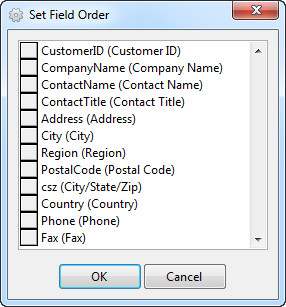
To move a field up or down in the list, click the button in front of its name and drag up or down. When you click OK, the fields are reordered and the new order is displayed in the data dictionary.
Calc Page
The Calc page is used for calculated fields or those where the data displayed to the user is different from how it's stored. For example, most order entry systems don't store the extended price of an item, but derive it from the unit price multiplied by the quantity. However, you may want your users to be able to report on extended price, so you would create a calculated field for it.
All of the properties on this page are disabled if you've chosen any of the options on the Special page (discussed below).
The following properties appear on the Calc page:
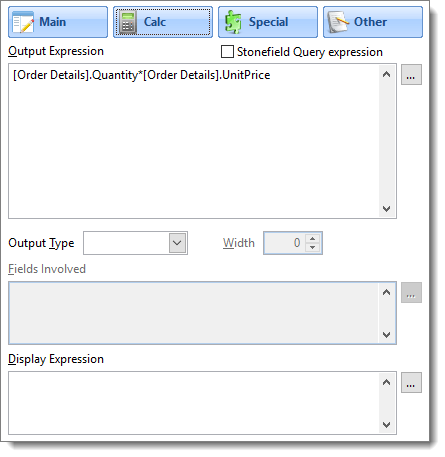
Output Expression: the formula used to display the value in the field to the user. This can be any Visual FoxPro expression, an expression your database engine understands, or a call to a user-defined script. Any fields that belong to tables other than the current one should be aliased (that is, include the name of the table, such as Customers.Company). If either the table or field name contains illegal SQL characters (such as spaces) or match SQL keywords, place delimiters (the ones you defined in the Add Database dialog) around the table or field name (for example, the UnitPrice field in the Order Details table should be entered with delimiters around the table name: [Order Details].UnitPrice).
To make it easier to enter the expression, click the button with the ellipsis (...) beside this option. This brings up the Expression Builder, which allows you to select from a list of available fields rather than having to type a field name. This is the same Expression Builder used in Stonefield Query.
Stonefield Query expression: turn this setting on if the output expression is processed by Stonefield Query or turn it off if it's processed by the database engine. For example, if the output expression calls a script or uses functions built into Stonefield Query, turn this setting on because the database engine won't be able to handle the expression. In that case, the fields listed in the Fields Involved property are retrieved from the database, and then Stonefield Query applies the output expression to them.
If the expression uses syntax the database engine can understand, such as simple arithmetic functions (for example, UnitPrice * Quantity) or functions built into the database engine, turn this setting off. In that case, the expression is sent as is to the database engine.
The advantage of having this setting turned on is the ability to call scripts or the hundreds of functions built into Stonefield Query, so you have more flexibility. The advantage of having this setting turned off is better performance, especially if the field is used in a filter, and taking advantage of functions built into the database engine.
Output Type: the data type for the output expression. You can leave this empty if it's the same as the field's data type,.
Width: the width of the output value. You can leave this set at 0 if it's the same as the field's width.
Fields Involved: a calculated field may derive its value from one or more real fields. For example, the extended price of an invoice item is calculated as the product of the unit price and the quantity. In order to perform the calculation when Stonefield Query expression is turned on, Stonefield Query needs to know which real fields to retrieve from the database. When you enter the Output Expression, Stonefield Query Studio automatically parses it and places any field names it finds in this property. However, if you call a user-defined script that does additional data access or use an expression such that the list of fields involved is incorrect, you need to enter the fields involved in the expression in this property. The field names should be fully aliased (that is, include the name of the table) and separated with commas. As with the Output Expression, place delimiters around table or field names that contain illegal SQL characters (such as spaces) or SQL keywords.
Display Expression: this property is similar to Output Expression except it allows the result set for a report to contain data in a proper sorted order but the values displayed in a report to be different. For example, using an expression like ICASE(Value = 1, 'Low', Value = 2, 'Medium', 'High') means that the result set will contain 1, 2, or 3, possibly sorted in that order, but the values are displayed as Low, Medium, and High, which wouldn't sort properly if the ICASE expression was used for Output Expression.
This is also useful if you need to sum or average a numeric field but display it as character values. For example, you may want a field containing time spent for an activity, where 1.5 means one hour and thirty minutes, displayed as "1:30." Calling a script to convert the numeric value to character in Output Expression prevents users from summing the field to get the total time spent. Instead, call the script from Display Expression.
To make it easier to enter the expression, click the button with the ellipsis (...) beside this option. This brings up the Expression Builder, which allows you to select from a list of available fields rather than having to type a field name. This is the same Expression Builder used in Stonefield Query.
Special Page
The Special page is used for three things: enumerated fields, displaying fields from related tables, and versioning. The first two items are disabled for calculated fields or those that you've specified an Output Expression for.
Version
The version setting contains the field's version number. A blank value means the field is not versioned: it appears in Stonefield Query regardless of the version of the database. For a field that isn't available in every version of the database, enter the version number followed by "+" to indicate the field appears in that version and higher versions and should not appear in lower versions (that is, the field was added in that version), "-" to indicate the field appears in that version and lower versions and should not appear in higher versions (that is, the field was removed in the next version), or no suffix to indicate the field appears only in that version and should not appear in any other version. For example, "5.3+" indicates the field is available starting in version 5.3 while "5.3-" indicates it was removed in version 5.4.
Use a comma-delimited list of values if the field was added in one version and later removed. For example, "5.3+,5.5-" means it was added in version 5.3 and removed in version 5.6.
Enumerated Fields
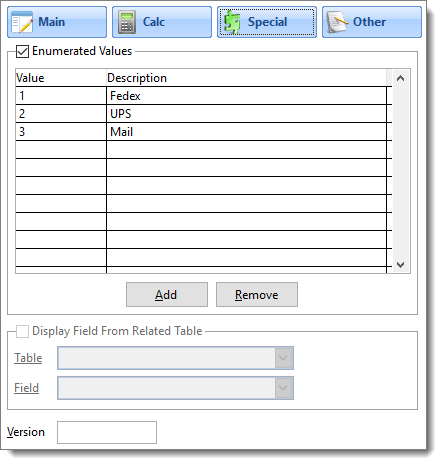
Enumerated fields are those that contain a pre-defined set of codes that mean something. For example, in the sample Northwind database that comes with SQL Server, the ShipVia field in the Orders table contains a 1, 2, or 3. These values aren't foreign keys looked up in another table, but rather hard-coded values, each of which represents a different shipping type. Often, these codes are displayed to the user in the application differently than they're stored. For example, the user might see "Fedex," "UPS," or "Mail" for the ShipVia field rather than 1, 2, or 3.
The Special page allows you to define the codes and display values for the selected field. To enable this feature, turn on the Enumerated Values option, then click Add (or press Alt+A) to add a new value to the list. In the Value column, specify the code value as stored in the field, and in the Description column, enter the value as the user sees it. Continuing with the above example, enter "1" for Value and "Fedex" for Description, "2" for Value and "UPS" for Description, and "3" for Value and "Mail" for Description. Use the Remove button (or press Alt+R) to remove the highlighted line.
See the Defining an Enumerated Field Programmatically topic for information on how to define an enumerated field at runtime.
Related Fields
For those fields that contain foreign keys, you likely don't want to display the foreign key values to the user since they probably don't see these values in your application and wouldn't understand the values stored in the field. Instead, you may want to display a particular field from the table that this field contains the foreign key for. For example, the Products table in the Northwind database has a CategoryID field that contains the foreign key to the Categories table. It might make sense to display the CategoryName field from the Categories table when the user selects the CategoryID field, since that's likely how they think of the category. Not only does this make it easier for the user to display the category name for a product (they can don't have to select the Categories table and then the CategoryName field), it also provides better performance, since Stonefield Query does an in-memory lookup rather than a two-table join.
To specify that a field from a related table is displayed in place of this field, choose the Special page, turn on the Display Field From Related Table option, select the desired table from the Table drop-down list (only tables that are parent tables in relationships to the current table are available; also, the relationships must be simple ones, as complex relationships aren't supported with this feature) and the desired field from the Field drop-down list.
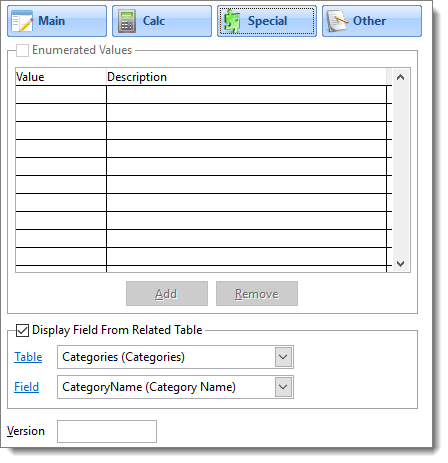
Display Field From Related Table is intended to be used for the foreign key field as a way to display something more meaningful. If you want a calculated field to display a value from a related table, simply use the aliased name of the field as the Output Expression for the calculated field. For example, to have a field in the OrderDetails table that displays the OrderDate from the Orders table, create a calculated field, set Output Expression to Orders.OrderDate, and turn off Stonefield Query Expression.
You can click "Table" or "Field" to jump to the selected table or field, respectively.
Other Page
The Other page has some additional settings:
Comments: if you want comments about a field available to your user, such as a detailed description of the purpose or contents of a field, enter them into Comments. Any comments you enter are displayed in the Comments page of the Field Properties dialog in Stonefield Query.
Values Method: when the user clicks the Values button in either the Filter Condition dialog or Step 2 of the report wizards, Stonefield Query displays a list of unique values for the selected field. This is done using a SELECT DISTINCT query on that field. However, there may be occasions when, due to the way the data is stored, you need a different mechanism for gathering the values to display to the user, such as calling a stored procedure. In that case, enter the expression to use instead. Typically, this is a user-defined script. See the Creating a Values Method Script for a Field help topic for an example of such a script.
You don't need to specify the Values Method property for enumerated fields (see below); Stonefield Query handles this automatically.
© Stonefield Software Inc., 2025 • Updated: 07/13/20
Comment or report problem with topic