 Scripts
Data dictionary properties and configuration settings can only take Stonefield Query so far. For some things, you need to code what Stonefield Query does. Some examples of where scripts are useful are:
Dynamically updating the data dictionary. For example, your application may allow the user to change the caption for some fields. You probably want the user to see the same captions in Stonefield Query; otherwise, the user might have trouble finding the field they want. In the DataEngine.GetCustomMetaData script, which is called just after Stonefield Query fills the DataEngine collections from the data dictionary, you can change the caption (or any other property) of any field. You can even add or remove fields.
Defining data sources. If the Allow Multiple Data Sources configuration setting is True, the user can select which of the list of data sets defined to Stonefield Query they want to query on. Stonefield Query has no idea what data sets are available in your application or how to access them, so you can define a GetDataSources script for each database in the data dictionary that adds DataSource objects to the DataSources collection, specifying things like the data source type, location, name of the database, etc.
Calling stored procedures. For a variety of reasons (security, performance, or because the DBA says so), you may want to access the data in a table via a stored procedure rather than by a SQL statement. Since Stonefield Query doesn't know the name of the stored procedure to call or the parameters to pass to it, you have to put code in the Select script for the table.
Calculated fields. You may have a calculated field for which a simple expression won't suffice. For example, suppose the commission for a sale is set to a sliding scale, so higher sales amounts receive a higher commission percentage. In this case, you may have to use a control structure such as a CASE statement to determine the amount. The code for this goes into a script called from the Output Expression property of the field.
There are three different types of scripts in Stonefield Query:
Event: These scripts are called from various places in Stonefield Query. For example, just before the Login dialog is displayed, the Application.BeforeLogin script is called. When the user chooses the About Stonefield Query function from the Help menu, the About dialog calls the About.Settings script to fill its list of settings.
Data object: These scripts are specific to a database or table, and are preceded by the database or table name; for example, "Northwind.GetDataSources" is the name of the GetDataSources script for the Northwind database.
User-defined: You can create a user-defined script that performs any task you wish. These are often called from the output expression of a field or from another script.
Stonefield Query supports five languages for scripting: Visual FoxPro, VBScript, JavaScript, VB.Net, and C#. VBScript and JavaScript require that the Microsoft Script Control is installed, both on your system and on the user's system. That control is automatically installed on Windows 2000 or later and any Windows 9x version with Internet Explorer 4 or later installed so you likely won't have to install it manually. VB.Net and C# require that version 2 of the .NET framework is installed, both on your system and on the user's system, before installing Stonefield Query.
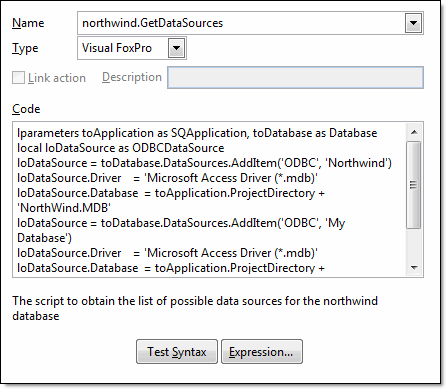
The default language for a new script is the same used last time you created a script. When you choose a language for an event or data object script, the code is automatically filled in with a template or sample in the selected language. If you select a different language after editing the code, you are warned that the code will be removed and replaced with template code in the newly selected language.
Stonefield Query supports link actions. In the Link page of the Field Properties dialog in Stonefield Query, the user can select what action to take when they click the selected field in the Preview window. There are three built-in actions: Email, which launches their email program with an email address filled in; Web site, which navigates their browser to a specific URL; and Report, which runs the specified report. You can also define custom actions. For example, perhaps you want another application to display the record for the customer name the user clicks in the Preview window. In that case, you have to tell Stonefield Query how to perform that action. That's where link action scripts come in. If you turn on the Link action setting for a script, Stonefield Query automatically includes the description contained in the Description setting in an Action drop-down list in the Link page of the Field Properties dialog. So, to continue this example, create a script that calls another application and tells it to display the record for the current customer name. Turn on the Link action setting for this script and set its Description setting to something like "Display customer information." The user can then select the customer name field in a report, select Action as the link type, and choose "Display customer information" from the Action drop-down. When they run the report, clicking the customer name calls your script, which does the necessary tasks to display the selected customer's record.
Note that the code for a link action script must accept two parameters. The first is a field name and the second is the value of that field in the record the user clicked. Your code can do anything it wishes with these parameters, except if the first parameter is blank, this is a "discovery" call from the Field Properties dialog. In that case, the second parameter contains the name of the field the link is on and the script must return a comma-delimited list of field names. By default, these fields will appear in the Action Parameter drop-down list in the dialog so the user can select one. If the field the user selects is not already in the query, it is automatically added with the Display this field in the report option turned off so it doesn't display in the report. If all of the fields in the returned list are required, prefix the list with "*,". In that case, the Action Parameter drop-down list doesn't appear and all fields are added to the query if they aren't already in it.
Here's an example of such a script:
lparameters tcFieldName, tuValue
if empty(tcFieldName)
  return 'Customers.CompanyName'
else
* do whatever is necessary
endif
For another example, see the Linking to Google Maps topic.
If you find it difficult editing the code in the edit box, right-click and choose Zoom from the shortcut menu. This displays a larger editing window, which you can resize and set the font to anything desired. Also, IntelliSense is available, which provides quick access to properties and methods of Stonefield Query objects and syntax for built-in functions. See the Creating a New Script topic for information on the code window.
You can test the syntax of your code by clicking the Test Syntax button. Note this doesn't test for logical errors or actually run the code—it only tests that it compiles correctly. If a syntax error exists, information the compiler returned about the error is displayed (however useful that may be).
You can insert a field name or expression into the code by clicking the Expression button to invoke the Expression Builder.
© Stonefield Software Inc., 2025 • Updated: 02/18/16
Comment or report problem with topic