 Creating a Subtable
When you create more than one join between a pair of tables in a SQL statement, you do so by providing an alias for one of the tables. For example, suppose an inventory items table has general ledger (GL) account numbers for both expense (when the item is purchased) and revenue (when the item is sold). A SQL statement that shows the inventory item description and the GL account names is:
select ITEMS.NAME, GLACCOUNT.NAME, EXPENSE.NAME
  from ITEMS
  inner join GLACCOUNT
    on ITEMS.REVACCOUNT = GLACCOUNT.ACCOUNTNUM
  inner join GLACCOUNT EXPENSE
    on ITEMS.EXPACCOUNT = EXPENSE.ACCOUNTNUM
Specifying EXPENSE as the alias for the GLACCOUNT table when it's used for expense accounts allows the database engine to handle the two uses for this table.
Stonefield Query provides the ability to define aliases for tables by defining a "subtable" of a table. A subtable is really just a way of assigning an alias to a table so it can be used more than once in a SQL statement, but provides some additional capabilities as well:
Filtering: sometimes, a table may be overloaded. That is, it contains records of more than one type, distinguished in some way (such as a TYPE column). An example of this is a lookup table, used to store descriptive names for all types of entities. For example, imagine the following data design:
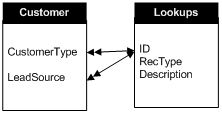
The Customers table has a foreign key called CustomerType that contains the ID value for a record in Lookups representing the customer type, and another foreign key called LeadSource that contains the ID value for a record in Lookups representing how they became a customer. Thus, Lookups contains two different types of records: customer types and lead sources. The RecType column in Lookups contains a "C" for customer type records and "L" for lead source records.
To handle this data design in Stonefield Query, create a subtable of Lookups called LeadSources and define a relationship between Customers and LeadSources. However, what if the user selects only fields from the LeadSources table ("Let's create a report listing all lead source descriptions")? That report prints all records in Lookups, not just lead source records. To solve that problem, Stonefield Query allows you to define a filter for the subtable. This filter expression is automatically added to the WHERE clause of the SQL statement so only certain records are retrieved from the database. In this case, the LeadSources subtable has LeadSources.RecType = "L" as its Filter property. So, when the user creates a report from the LeadSources table, only lead source records are displayed. You might also want to create another subtable of Lookups called CustomerTypes, set its Filter to CustomerTypes.RecType = "C," and then specify that Lookups is not reportable. Thus, the user only sees Customers, CustomerTypes, and LeadSources tables, and not a Lookups table.
Customized fields: not all of the fields in a table may be applicable in a specific subtable, or perhaps they should have different captions. Since these tables are treated as if they were separate tables in Stonefield Query, you can independently specify which fields are reportable and what caption each field has in each table. Following the example above, the caption for the Description field in the CustomerTypes subtable may be "Customer Type Description," while the caption for that field in the LeadSources subtable may be "Lead Source Description."
Subtables aren't just useful for multiple relationships between a pair of tables; they can also be used for self-joins. For example, you may have an Employees table that includes a ManagerID field which contains the ID for another employee record representing the employee's manager. In this case, create a subtable of Employees called Managers and define a relationship between them matching the ManagerID field from Employees with the ID field from Managers. You may also want only certain fields in Managers to be available, such as their name, since salary, department, and other fields can be obtained from the appropriate Employees record. You may also set a Filter for Managers, something like Managers.IsManager = .T.
To create a subtable for a table, select the table in the TreeView and choose the Create Subtable function from the Objects menu, the shortcut menu, or from the drop-down list for the Create button. Enter the name for the new subtable when prompted. Stonefield Query Studio creates a copy of the table and all of its fields. You are prompted if you want to copy the relations for the existing table to the subtable. Subtables have a different icon in the TreeView ( ) and a different set of properties.
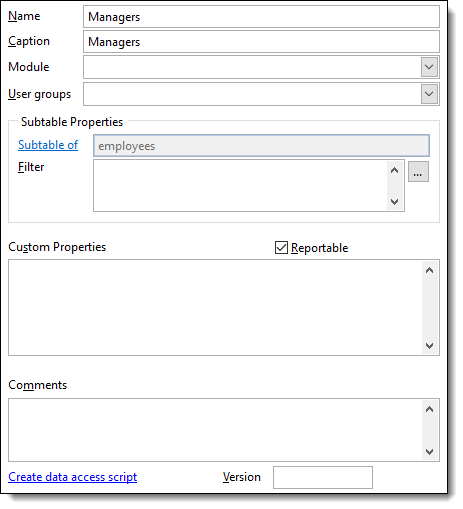
In addition to the usual properties for tables, subtables also have the following properties:
Subtable of: this is the name of the original table this subtable retrieves data from. You cannot change this property. Click the link to jump to the original table in the TreeView.
Filter: enter an expression to be added to the WHERE clause to retrieve only certain records from the original table for the subtable. This expression must contain the alias of the subtable (for example, use Managers.IsManager = .T. rather than IsManager = .T.).
Stonefield Query may automatically create subtables when it creates the metadata for a database; see the Adding a Database to the Data Dictionary topic for details.
You can avoid having multiple subtables of a table that's only being used to lookup values by creating calculated fields that use the built-in SQLookup function instead. See the Using SQLookup to Avoid Subtables topic for details.
See also
Adding a Database to the Data Dictionary | Table Properties© Stonefield Software Inc., 2026 • Updated: 08/29/18
Comment or report problem with topic