 Creating a Help File
This feature is only available in the Ultimate version of Studio.
Stonefield Query includes an extensive HTML Help file (SFQuery.chm) that describes all the dialogs and provides tutorials and a "how to" section. However, it's likely you'll need to customize this help file, especially if you change the Application Name or other configuration settings. Fortunately, Stonefield Query Studio can do much of the work for you.
Creating a Help Project
Before you can create a customized help project for your Stonefield Query project, you need to do a little preparation. In the Stonefield Query Report Designer, create at least one report of each type—quick report, cross-tab report, label report, chart, and gauge, as well as a dashboard containing at least one chart, a tiled dashboard containing at least one tile, and a batch report containing at least one report—in the Favorites folder. These reports are used to create screen shots of the report wizards so the topics in the help file display appropriate sample reports for your application. The Quick Report should include fields from more than one table or else the screen shot for the Customize Wizard won't display the "custom relationships" page. Next, fill in the Support Contact Information configuration setting if it isn't already.
To create a customized help project, choose Create Help Files from the File menu or the shortcut menu or click the Create Help Files button in the toolbar. This creates a subdirectory of the current Stonefield Query project directory called HTMLHelp and places the help project files into this subdirectory. The help project files are customized according to the current configuration settings. For example, all references to "Stonefield Query" are changed to the value you specify for the Application Name configuration setting. Press Esc if you want Stonefield Query Studio to stop generating help files.
If the Support Contact Information configuration setting isn't filled in, the Technical Support help topic won't be complete, so you are prompted whether you want to continue. If you choose No, that setting is automatically selected so you can fill it in and try again.
After generating the help files, Stonefield Query Studio then generates screen shots of most Stonefield Query dialogs. Before doing so, it asks whether you want a "camera" sound played as it does so. Choosing Yes makes it obvious what is happening but also slows down the process. After you choose either Yes or No, Stonefield Query Studio launches Stonefield Query and tells it to create the various screen shots. You can stop the screen shot process by pressing Esc if necessary.
After the complete generation process is done, Stonefield Query Studio prompts if you want to open the West Wind HTML Help Builder project. Choose No if you don't have West Wind HTML Help Builder installed or don't want to open the project at this time.
In order to generate screen shots of report wizards that are specific for your application, you must create at least one report of each type (quick, cross-tab, label, and chart, as well as a dashboard, tiled dashboard, and batch report) in the Favorites folder. None of these reports should have any ask-at-runtime conditions. If a specific report type cannot be found or it has an ask-at-runtime condition, a warning message is displayed and the screen shot set won't be complete.
Two types of help projects are created. The first is a Microsoft HTML Help Workshop project. HTML Help Workshop comes with many Microsoft development environments, but you can also download it from Microsoft's Web site (http://msdn.microsoft.com; search for "html and help" and choose the download link from the results). The main file for this project type is SFQuery.hhp.
The other type of project is a West Wind HTML Help Builder project. HTML Help Builder, from West Wind Technologies (http://www.west-wind.com/wwhelp) is a great, inexpensive utility for creating HTML Help files. It was used to create the help files for both Stonefield Query and Stonefield Query Studio. The main file for this project type is SFQuery.hbp.
This file requires version 5.0 or later of West Wind HTML Help Builder.
Customizing a Help Project
Although the Create Help Files function does much of the customization work for you, you may have to customize additional things in the generated help project. Here are the most common topics to customize (topics referred to in the instructions below with "Stonefield Query" in the topic name will actually appear as whatever you changed the Application Name property to in your help file):
Customize the topics under the Tutorial heading to match your specific application's data.
The Example topic under Using Stonefield Query, Creating a Quick Report, Advanced Report Designer describes using the Advanced Report Designer on the report created in Lesson 1 of the tutorial, so customize it accordingly as well.
Although it isn't required, you may wish to change the fields used in the Creating a PivotTable Report Using Microsoft Excel, Creating Labels or Form Letters Using Microsoft Word, and Creating Labels Using the Advanced Report Designer topics.
Add any additional information desired to the Technical Support topic under the Stonefield Query heading.
If you set the User Can Manage Data Sources configuration setting to True, you may want to customize the information in the Creating an ODBC Data Source topic (under the Managing Database topic, which is in the How To section), depending on the ODBC drivers the application uses.
If you create an Options.Settings script, update the content of the Configuring Stonefield Query help topic under the How To section, describing any additional options you defined in the Options.Settings script. Screen shots for any additional pages in the Options dialog are named OPTIONS<n>.PNG, where <n> is the page number, so be sure to add those images to the topic as well.
If you create a Setup.Settings script, update the content of the Setting Up Stonefield Query help topic under the How To section, describing any additional options you defined in the Setup.Settings script. Screen shots for any additional pages in the Setup dialog are named SETUP<n>.PNG, where <n> is the page number, so be sure to add those images to the topic as well.
If you provide some link action scripts, add some text to the Field Properties (Quick Report) topic (under Step 2: Data Selection (Quick Report), which is under Creating a Quick Report) and Field Properties (Cross-Tab Report) topic (under Step 3: Cross-Tabulation Options (Cross-Tab Report), which is under Creating a Cross-Tab Report) that describes what link actions you provide.
You must not remove the Copyright topic under the Stonefield Query heading. Although you may change other text in this topic, you must not remove Stonefield's copyright from this topic. In other words, the following text must remain in this topic:
© 1996-2026 Stonefield Software Inc. All rights reserved.
You may add additional copyright marks of your own.
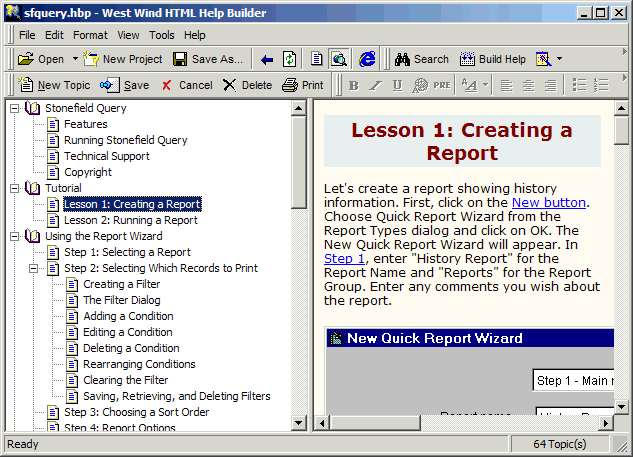
How you customize the help project depends on which type of help project you want to work with. The easiest one is a West Wind HTML Help Builder project. Open SFQuery.hbp, select the appropriate topic from the TreeView in the left pane, and edit the text as necessary in the edit region in the right pane.
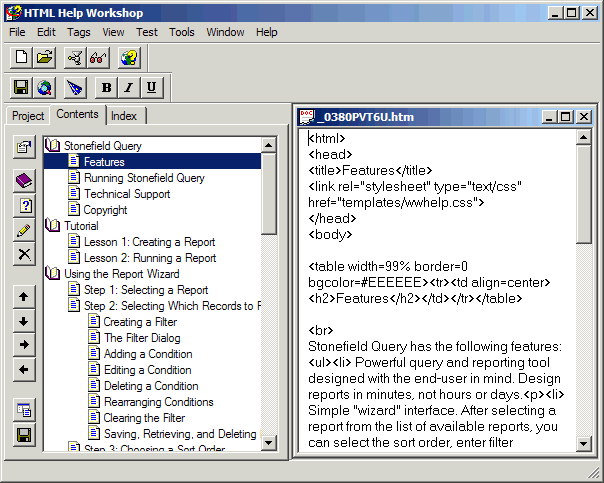
If you want to edit the HTML Help Workshop project, open SFQuery.hhp, choose the Contents page, and double-click the appropriate topic in the list. The text for the topic is displayed with HTML tags, so editing it is much more cumbersome than using West Wind HTML Help Builder. You can use a different HTML editor if you wish, but note that the names of the HTML files are system-generated names like _0QX0T1ZEU.htm. To find the file to edit for a topic you want to change, select the topic in the Contents page of the HTML Help Workshop, click the Edit Selection button in the toolbar, and note the name of the file shown in the General page of the dialog that appears.
Building the Help File
Building the help file is simple. In HTML Help Workshop, click the Compile HTML File button in the toolbar. In West Wind HTML Help Builder, click the Build Help button in the toolbar. In either case, follow the prompts in the dialogs that appear. After the SFQuery.chm file has been created, move it to the Stonefield Query project directory.
Stonefield Query generates the project files for your custom help file in a particular directory. If you move the files to a different directory and you want to use HTML Help Workshop to generate the CHM file, you must edit the #INCLUDE statement in the [MAP] section of the SFQuery.hhp file to specify the correct path for the SFQuery_Help.h file.
Placing the help source files in a very deeply nested directory structure may cause the help file to compile incorrectly. If this happens, try using a different, less deep directory structure.
Help Placeholders
Part of the help customization process is the replacement of placeholders in the help text with the appropriate configuration settings. Here's a list of each placeholder and the associated setting:
| Placeholder | Setting |
|---|---|
| lcAppName | Application name |
| lcShortAppName | Short application name |
| llMultiLanguage | Support multi-languages |
| lcSupportCenter | URL for technical support site |
| llSupportCenter | True if the URL for technical support site setting is filled in |
| lcKBURL | URL for Knowledgebase |
| llSupportKB | True if the URL for Knowledgebase setting is filled in |
| lcCompany | Company name |
| lcContactInfo | Support contact information |
| lcImage | Logo image file |
| lcFeedURL | URL for news feed |
| llSupportNews | True if the URL for news feed setting is filled in |
| lcDemoDays | Number of days for demo version |
| lcEXEFile | The name of the Stonefield Query executable file |
| llMultiple | Allow multiple data sources |
| llManage | User can manage data sources |
| lcDatabase | Description for data sources |
| lcDatabaseProper | Description for data sources (capitalized) |
| lcDatabases | Description for data sources (plural) |
| lcDatabasesProper | Description for data sources (plural and capitalized) |
| lcDataGroup | Description for data groups |
| lcDataGroupLower | Description for data groups (in lower case) |
| llDataGroups | True if there are any data groups defined |
| lcAppView | Description for application views |
| lcAppViewLower | Description for application views (lower case) |
| llAppViews | True if there are any application views defined |
| llMultiQuery | Allow queries on multiple data sources |
| llEditSQL | User can edit SQL statement |
| llSupportFavorites | Enable table/field favorites |
| llTargetApp | Need target application directory |
| lcTargetApp | Target application's name |
| llSupportUpdates | Support online updates |
| llSupportMaint | Support maintenance reminder |
Deploying Help to a Web Site
You can deploy your help to a web site as HTML files. The benefit of this is that you can send an end-user a link to a specific topic rather than telling them to find that topic in the CHM file. For example, we have deployed the end-user help files for Stonefield Query to https://www.stonefieldquery.com/OnlineHelp/EndUser/. If a customer has a question about licensing, we send them the link to the licensing topic: https://www.stonefieldquery.com/OnlineHelp/EndUser/_0xz0tjq4q.htm.
To deploy the HTML files to a web site, upload to a folder on your web server all HTM files in the HTMLHelp subdirectory of your project folder (the other files in this folder aren't needed), plus all files in the BMP and Images subdirectories of HTMLHelp. For the Templates subdirectory, upload wwhelp.css and the files in the Scripts folder.
© Stonefield Software Inc., 2026 • Updated: 05/05/25
Comment or report problem with topic