 Multi-Language Support
Every dialog caption and message displayed to the user in Stonefield Query is defined in a resource file called SQResource.DBF, located in the Data subdirectory of the program folder (thus the resource file is global to Stonefield Query and not project-specific). This table consists of the following fields:
| Name | Data Type | Description |
|---|---|---|
| RESTYPE | Character | The resource type. Currently only one resource type, "S" for string, is defined. |
| RESOURCE | Character | The name of the resource. |
| INACTIVE | Logical | True if the resource isn't currently used in Stonefield Query. |
| USEDIN | Character | Where in Stonefield Query the resource is used. |
| MODIFIED | Date | The date the resource was added or last modified. |
| NOTES | Memo | Any notes about this resource. |
| ENGLISH | Memo | The value of the resource when English is selected as the language. |
| FRENCH | Memo | The value of the resource when French is selected as the language. |
| SPANISH | Memo | The value of the resource when Spanish is selected as the language. |
| GERMAN | Memo | The value of the resource when German is selected as the language. |
| DUTCH | Memo | The value of the resource when Dutch is selected as the language. |
Stonefield Query ships with English, Spanish, and Dutch resources. You can use the Stonefield Query Resource Editor to specify the value of each resource in other languages. Also note that while only five languages are initially supported, you can add other languages using the Resource Editor.
The Stonefield Query Resource Editor is a separate application, SQResource.EXE, in the same directory as Stonefield Query Studio. This application allows you to translate the English messages displayed by Stonefield Query into other languages.
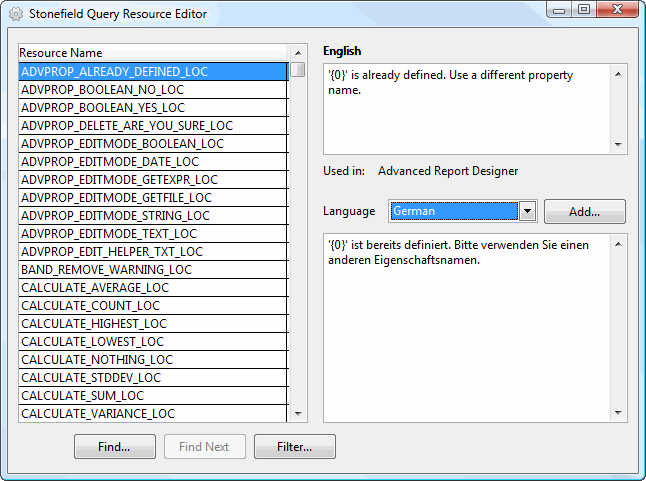
The list at the left displays the resources used in Stonefield Query (only those records in SQResource.DBF that have INACTIVE set to False are displayed), and the controls at the right display the properties for the selected resource. The English edit box displays the value of the resource in English, Used In shows where this resource is used in Stonefield Query, the Language drop-down list allows you to select another language, and the edit box below the drop-down list displays the value of the resource in the selected language. To edit a resource, select it in the list, choose the desired language, and enter the appropriate message in the edit box below the drop-down list. There is no Save button; changes are automatically saved when you select another resource or close the Resource Editor.
If you only want to see certain resources, click the Filter button. This displays the following dialog:
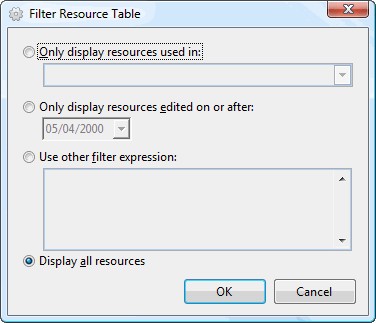
This dialog has the following options:
Only display resources used in: select this option if you want to limit the resources displayed to those in a particular component in Stonefield Query, such as the Error Handler, Report Engine, or Reports Explorer.
Only display resources edited on or after: when we release a new version of Stonefield Query, it's almost certain that new resources are added or the text of existing resources edited. The MODIFIED field of those resources is changed on the date they were added or modified. To find out which ones we added or modified after a certain date, choose this option and enter the desired date.
Other filter expression: enter a FoxPro expression if you want to filter the resources table in some other way.
Display all resources: removes any filter so all resources are displayed.
Many resource names use the following prefix naming convention:
CHK_CAP is the caption for a check box.
CMD_CAP is the caption for a command button.
ERR is an error message.
FRM_CAP is the caption for a form or dialog.
LBL_CAP is the caption for a label.
MENU is the caption for a menu item.
MSG is a message or other string.
OPT_CAP is the caption for an option group.
STR is a miscellaneous string.
TOOLTIP is a tool tip.
Certain special characters may appear in the value of a resource. "\<" indicates the following character is the "hot key" for this resource. This is typically used in menu items to indicate which letter to press to select that item when the menu is open and in captions for controls (not forms) to indicate which Alt+letter combination moves to that control (or clicks the button in the case of a command button). For example, the English value for the MENU_COPY resource (used for the Copy item in the Edit menu) is "\<Copy," so the hot key for this item is "C."
A digit between curly braces (such as {0}) in a message indicates that another string is inserted into that place in the message. For example, the English value for the ERR_CANT_CONNECT resource is "{0} could not connect to the {1} {2}." This means Stonefield Query substitutes other strings at three places in this message. In this case, {0} is replaced with the value of the Application Name configuration setting, {1} is replaced with the name of the data source Stonefield Query tried to connect to, and {2} is replaced with the value of the Description for Data Sources configuration setting. So, this message might appear as "Stonefield Query for Northwind could not connect to the Northwind database." Another example is "{%1} object(s) exist in the {%2} band(s)." In this case, {%1} is replaced with the number of objects and {%2} is replaced with the band name. When you translate the English message to another language, be sure to include these placeholders in the appropriate places in the message.
To find the resource containing a particular string, click the Find button, enter the desired string, and click OK. To find the next resource with the same string, click Find Next.
To add a new language to the resource table, click the Add button and enter the name of the language. The name must be 10 characters or less and only contain the letters A through Z.
The only places in Stonefield Query that don't use the resource table for messages are the Format and Report menus in the Advanced Report Designer. Instead, these use a specific language resource DLL:
VFP9RCHS.DLL: Chinese, Simplified
VFP9RCHT.DLL: Chinese, Traditional
VFP9RCSY.DLL: Czech
VFP9RDEU.DLL: German
VFP9RENU.DLL: English
VFP9RESN.DLL: Spanish
VFP9RFRA.DLL: French
VFP9RKOR.DLL: Korean
VFP9RRUS.DLL: Russian
To specify a resource DLL, do one of the following:
Stonefield Query uses the current Windows locale to dynamically construct a DLL file name. Therefore, if the locale-specific resource file matches the system locale on the user's version of Windows, you don't need to explicitly specify the resource file name. However, it's always safest not to rely on the system default if you want to be sure that the proper file is loaded.
In the command line that starts Stonefield Query, include the L switch and the name of the resource file that you want to use (including a path if necessary). Do not put a space between the switch and the file name. For example:
C:\Program Files\Stonefield Query\SFQuery.EXE -LVFP9RDEU.dllSet the Windows registry on the user's machine to point to the resource file to use. The registry entry containing the name of the run-time resource file is:
HKEY_CLASSES_ROOT\VisualFoxProRuntime.9\ResourcesFor example:
HKEY_CLASSES_ROOT\VisualFoxproRuntime.9\Resources C:\Program Files\Stonefield Query\VFPRDEU.dll
Localizing reports
If you wish to localize reports, Stonefield Query needs to have translated versions of all table and field captions. Start by choosing Generate Resource File from the File menu to generate English.xml in the Resources subdirectory of your project folder. This file has the following content:
<?xml version = "1.0" encoding="Windows-1252" standalone="yes"?>
<resources>
	<resource>
		<key>Caption</key>
		<value>Caption</value>
		<usedin>Table.FieldName</usedin>
	</resource>
</resources>
The key element contains the English caption of a table or field, the value element contains the translated version of the caption, and the usedin element contains the name of the table or field the caption is for (common captions such as "City" may have multiple fields in usedin, such as "Customers.City, Employees.City").
Rename this file to the language you wish to use, such as French.xml. Replace the content of the value elements with the translated version. For example:
<?xml version = "1.0" encoding="Windows-1252" standalone="yes"?>
<resources>
	<resource>
		<key>City</key>
		<value>Ville</value>
		<usedin>Customers.City</usedin>
	</resource>
</resources>
Include the resource files in your setup executable, installing it in the Data\Resources subdirectory of the program folder.
© Stonefield Software Inc., 2025 • Updated: 04/14/21
Comment or report problem with topic